 TransposeAny
Music speed control
Slow down songs, lessons, and hard passages with precise increments, then return to full tempo when the phrase starts to land.

Free Chrome extension — pitch shift, looper, chords & EQ
Any song. Any key. Any instrument.
TransposeAny is a free Chrome extension and music looper for practising with video. Transpose a song into your range, slow the hard bar down without the chipmunk effect, loop it to the beat, and read the chords straight off the audio — on YouTube, Instagram Reels and Spotify, without leaving the page.
On a phone? TransposeAny installs on desktop Chrome, so grab it there. Meanwhile, everything below is the real panel — have a look at what it does, then open transposeany.com on your computer.
The whole idea in one take: open a lesson, loop the hard phrase, and the practice room is already set up beside it — loops on the beat, metronome following, chords on the waveform.
Run an analysis on the section you are working on and TransposeAny listens to the audio the way you would: it follows the harmony, splits it at the beats, and writes the chord names along the waveform. No tab site, no chord sheet in another tab, no guessing whether that bar was a D or an F#m.

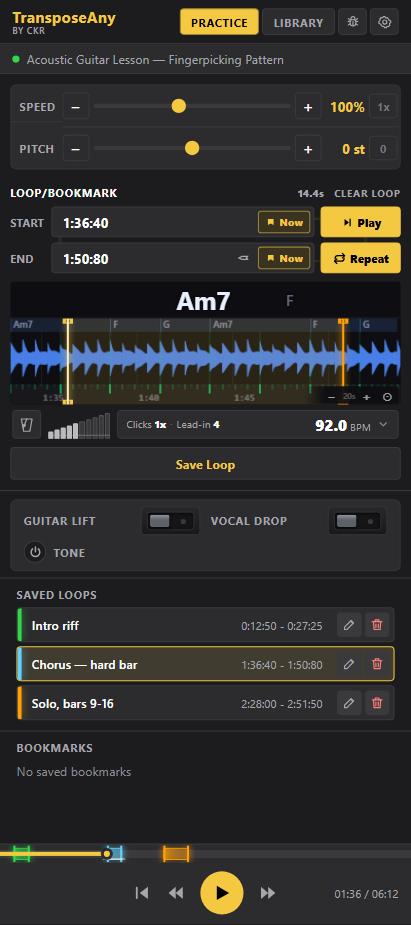
A real analysis, playing. Am7 · F · G · Am7 · F — read from the audio, not from a chord sheet. The chord you are on is the big one and the next waits beside it, both changing as the playhead crosses each change. It runs between the two loop markers and starts over the instant it reaches the end, which is what practising one bar actually looks like.
Chord detection is an ear-training partner, not a transcription service. It gets ordinary progressions right most of the time and gives you a strong starting point on the rest — check it against your ear, then loop the bar and settle the argument.
Because getting the loop right is half the work. A loop that starts a hair late teaches you to come in late. By hand you are nudging a scrub bar frame by frame, listening back, nudging again — and it is still a few milliseconds out. Once the section is analysed, TransposeAny takes the job off you: drag an edge anywhere near the beat and it lands on the beat.


Four beats, then you play.
The tempo readout follows your playback speed, so a passage analysed at 92 BPM reads 82.8 BPM when you slow it to 90% — the number you are actually playing against, not the one in the file.
Chord and beat detection normally means handing your audio to somebody else: make an account, upload the file, wait in a queue, get a result back. TransposeAny does the listening here, in the page, while the section plays.
Worth checking rather than believing. TransposeAny does send anonymous usage counts — which controls get used, never what you watch, and the video ID is hashed before it leaves. You can switch that off in settings, and the audio path is unaffected either way. It is all written down in the privacy policy.
Some recordings bury the thing you are trying to copy. The bass line sits under everything, the guitar disappears into a dense mix, a bright lesson video wears your ears out twenty minutes in. TransposeAny gives you three ways to move the balance — and remembers which one you used on that song.


An equaliser cannot un-record a mix. What it can do is tilt the balance far enough that the part you are copying stops hiding — and because it is matched for level and saved per song, you can set it once and trust what you hear the next time you sit down with that lesson.
The moment a lesson stops working is usually specific: one phrase too fast, one key too high, one bar you keep fluffing. A plain video looper leaves you to solve all three by hand.
Slow down songs, lessons, and hard passages with precise increments, then return to full tempo when the phrase starts to land.
Change key, transpose a lesson into your vocal range, match your instrument, or study a part in a more comfortable pitch.
Set start and end points, loop sections of YouTube, Instagram Reels and Spotify, replay exact passages, and keep unsaved loops restored per video.
Drag a pad, sweep a single band, or set ten sliders. Lift a buried bass line, bring the guitar forward, or take the edge off a harsh recording — level matched, and saved with the song alongside Guitar Lift and Vocal Drop.
Generate beat grids for loops, use count-ins, and keep metronome timing lined up with playback.
Return to a lesson with working speed, pitch shift, loop, and timing settings restored for that video.
Analyze a section and TransposeAny reads the harmony from the audio, lines chord names up with the beats, and shows the current and next chord as playback moves.
See the shape of the section, click anywhere to jump, and set loop points against beats and chord changes instead of guessing at a scrub bar.
Keep the passages worth returning to, add bookmarks while you play, and reload any saved section from the library on the next practice run.
A speed slider gets you part of the way. The rest of practice is finding the four seconds that are wrong, hearing them clearly, moving them into a key you can reach, and coming back tomorrow without setting it all up again.
Tempo, pitch, loop points, waveform, chords and metronome are all one panel away, so you are not hunting through menus in the middle of a phrase.
Singers, guitarists, pianists, string players and drummers all end up using the same four controls. Nothing here assumes an instrument.
Bookmarks, saved loops, and per-video state mean tomorrow starts where today stopped, not at the top of the video.
No ads, no subscription, no DAW to open first. Load the lesson and start.
Music learners already pay with time and attention. Pitch shift, speed control and looping stay out of the way of the phrase in front of you.
The panel is 400 pixels wide and sits beside the lesson — near enough to reach mid-phrase, far enough to leave the video alone.


Pitch shifter, speed changer and video looper in one panel — because learning a part means doing all three to the same eight bars, over and over, until they stop falling apart.
Transpose songs for singing practice, move lessons into a comfortable range, and loop difficult phrases without leaving the video.
Slow down guitar lessons online, repeat riffs, read the detected chords for a song with no tab, and use pitch shift when a recording sits in the wrong key.
See the chord changes as they arrive, loop them, practice hands separately, and change pitch or speed while studying music videos.
Use beat-aware loops, count-ins, bookmarks, and saved practice sections for students, rhythm work, and instrument study.
Follow a worked example, then try it with your own lesson in desktop Chrome.
The things people ask before installing a practice tool — answered straight.
Yes. Speed and pitch are separate controls, so you can slow down anything from 25% to 200% and it stays in the original key — no chipmunk, no seasick warble. Pitch preservation is on for every video by default.
Yes, and the other way round too. Transpose up or down by up to 12 semitones and the tempo does not move; change the speed and the key does not move. The detected chord names transpose with you, so what you read matches what you hear.
YouTube, Instagram Reels and Spotify, on desktop Chrome. It only asks for access to those three sites — it cannot see any other page you have open.
Yes. No ads, no paywall, no trial, no account, and nothing to install beyond the extension itself.
No. Chord and beat detection runs inside your browser, on your machine, while the section plays. No copy of the audio is sent anywhere, kept anywhere, or used to train anything — which is also why it works on private or unlisted videos you could never upload to a service.
Usually no time at all. TransposeAny listens along quietly while the video plays, so by the time you loop a passage it has typically already heard it — the chords and beats appear at once. If you jump to a section it has not heard yet, it listens to that region once in real time while it plays. Either way the results are cached for that video and come back instantly next time.
It reads triads plus sixths, sevenths, major and minor sevenths, half-diminished, augmented and suspended chords — thirteen qualities in all — straight from the audio. It is an ear-training partner rather than a transcription service: ordinary pop, folk and blues progressions come back right most of the time, and the rest is a strong starting point to check against your ear.
Yes. Loops, bookmarks, speed, pitch and tone are all saved against that specific video, so reopening a lesson picks up where you stopped instead of at the top of the video.
Yes — that is what the tone control and the 10-band equaliser are for. Drag a pad by feel, sweep a single band to find whatever is hiding the part, or draw a curve across ten bands. It is level matched, so a boost cannot fool you into thinking it sounds better just because it got louder.
Six: English, Spanish, Portuguese (Brazil), German, Japanese and French. It follows your browser language automatically.
A free Chrome extension for pitch shift, speed control, looping, chord detection and EQ. No ads, no paywall, no account, and nothing else to install — the analysis runs on your own machine.
Go easy on us: we are still getting the band in time. We are working on improving the product, and every note, sour note, and wild feature request is welcome.
Your note made it to the set list. We will use it while we keep improving TransposeAny.